Send SMS to a Group via iSMS Portal
Follow these steps to compose and send a group SMS message through your iSMS account dashboard.
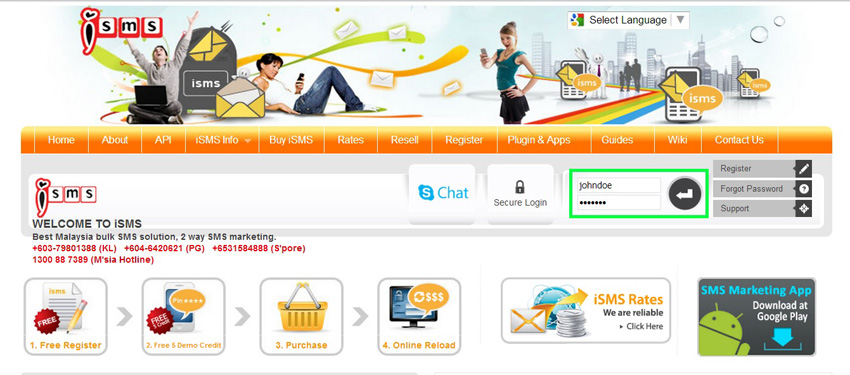
Login to your iSMS account
Go to www.isms.com.my and log in with your username and password.
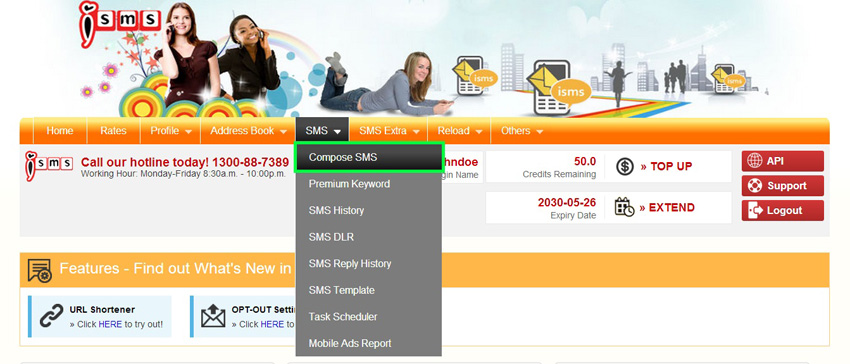
Go to SMS → Compose SMS
From the main menu, navigate to SMS › Compose SMS.
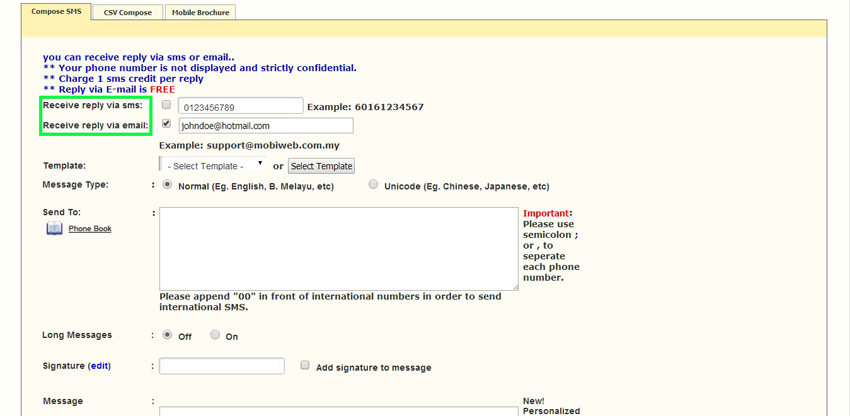
Choose your Receive Reply Method
Select whether you want replies delivered to you via SMS or Email.
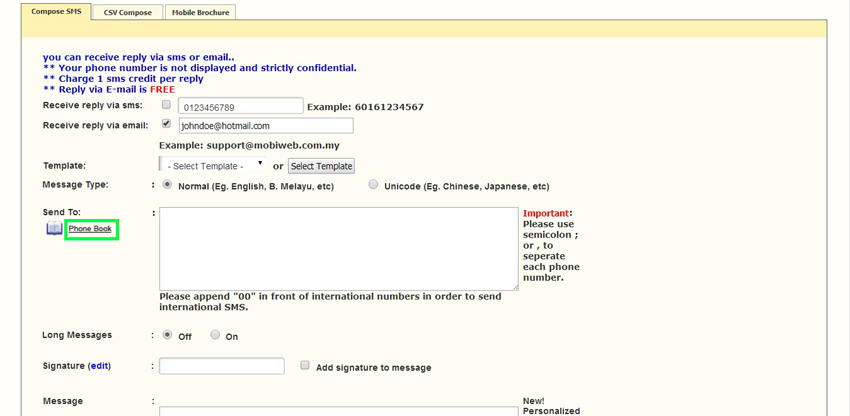
Click Phone Book to select contacts
Click the Phone Book button to open your address book.
Select a contact group
In the Address Book, scroll down and select the contact group you want to send to.
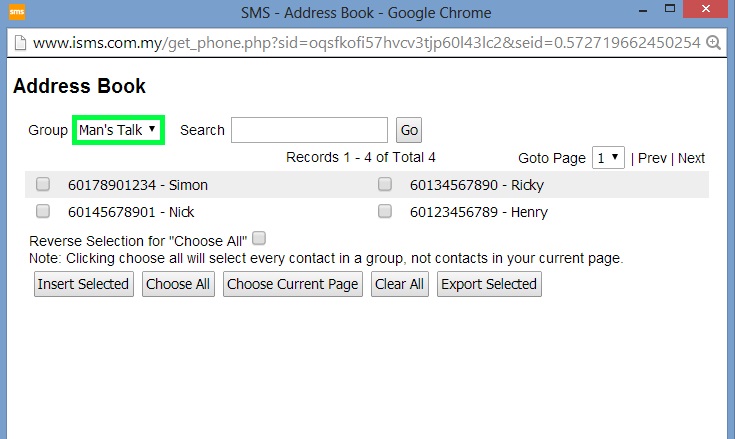
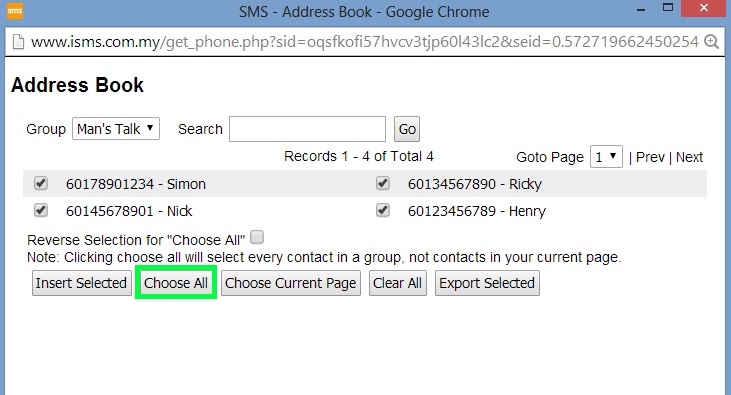
Choose all contacts in the group
All contacts in the selected group will appear. Click Choose All to select every contact.
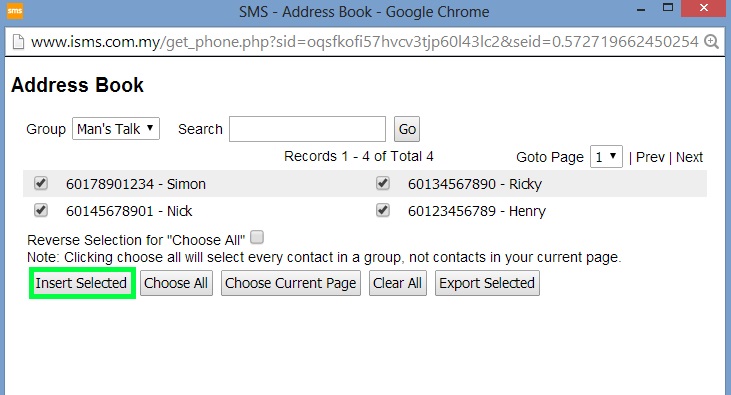
Click Insert Selected
Click Insert Selected to add all chosen contacts to the recipient field.
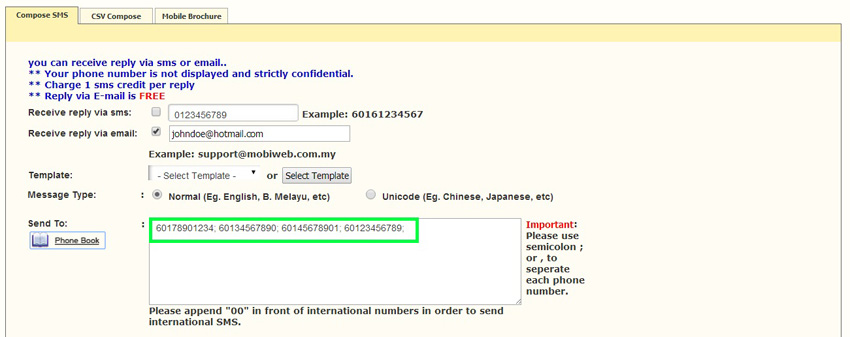
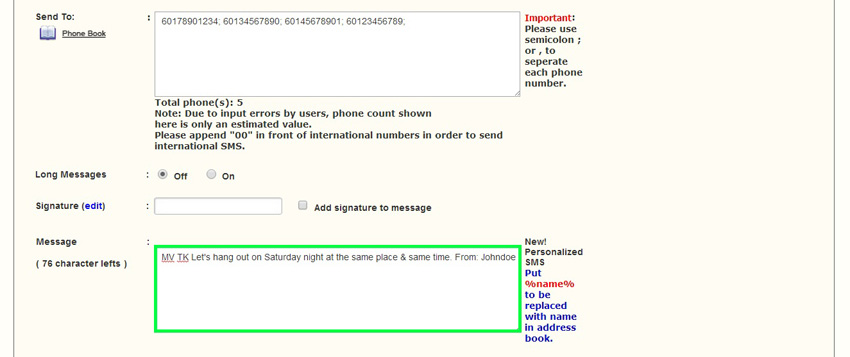
Contacts inserted into Send To field
All contact numbers from the group are now populated in the Send To column.
Write your message
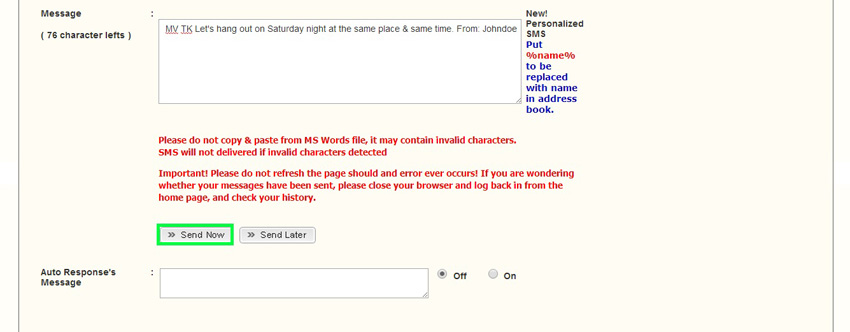
Compose your SMS message. If your group has a keyword, prefix it before the text — e.g. MV TK Your message here.
Click Send Now
Review your message and click Send Now. Your SMS is immediately sent to all contacts in the group.
MV TK Your message here.Need Help?
Contact our team — we'll guide you through setup and integration.