📱 Export iPhone Contacts to CSV
Export your iPhone contacts to a CSV file using iTunes — then upload directly to the iSMS Address Book for bulk SMS.
Export iPhone Contacts to CSV via iTunes
Export your iPhone contacts to a CSV file using iTunes — then import directly into the iSMS Address Book for bulk SMS campaigns.
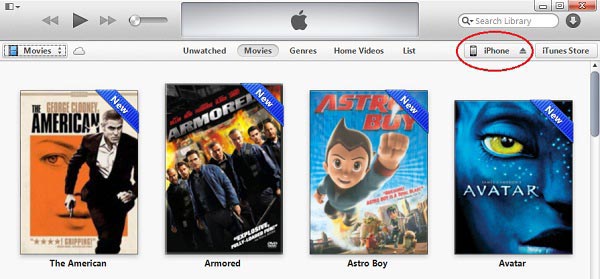
Connect your iPhone to your computer and open iTunes. Click on the device icon.
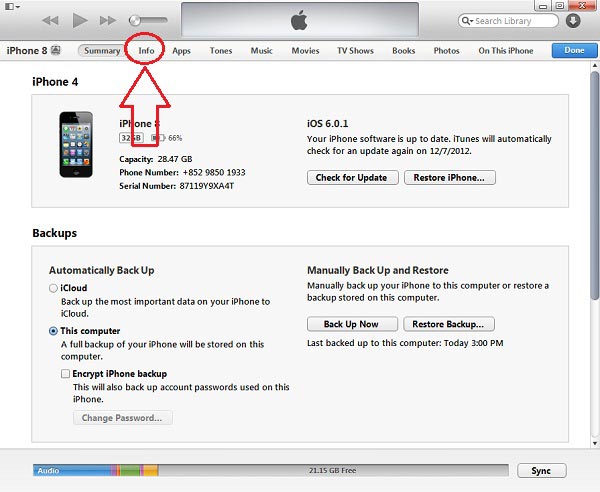
Click on Info in the device panel.
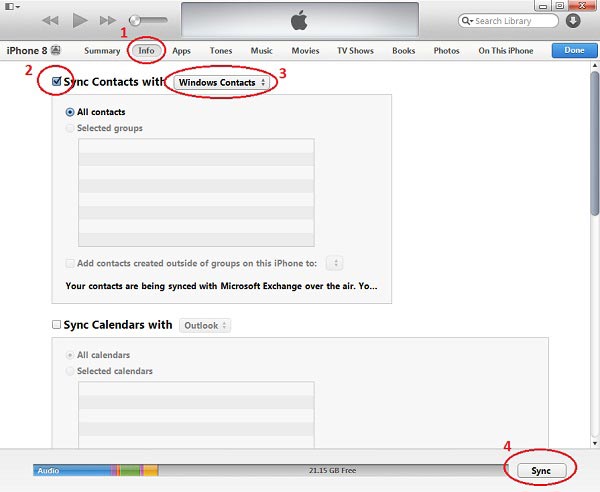
Check Sync contacts with... → select Windows Contacts → click Sync. Your contacts will be saved in a Contacts folder in your Windows profile.
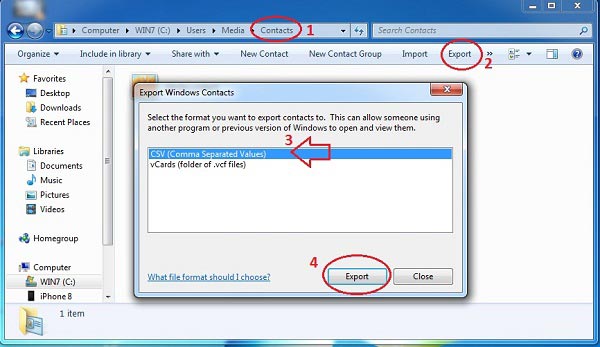
Open your Contacts folder in Windows. Click Export (top right) → select CSV (Comma Separated Values) → click Export.
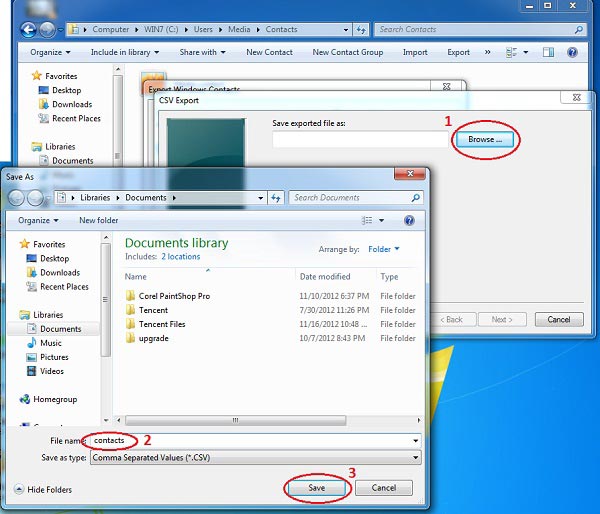
Click Browse, choose where to save, enter a filename, click Save. Your contacts are now in CSV format — ready to upload to iSMS.
Need Help Getting Started?
Contact our team — we reply within 1 business day.