Chapter 10 · Part 1
How to Create a CSV File in OpenOffice
Using OpenOffice Calc? You can open, format, and save a clean CSV that iSMS will accept. The important parts are the number format and choosing the right delimiters when you save.
Creating your CSV in OpenOffice Calc
- 1
Open in Calc with the comma separator
Open your
.csvin OpenOffice Calc, and on the import screen choose Separated by → Comma.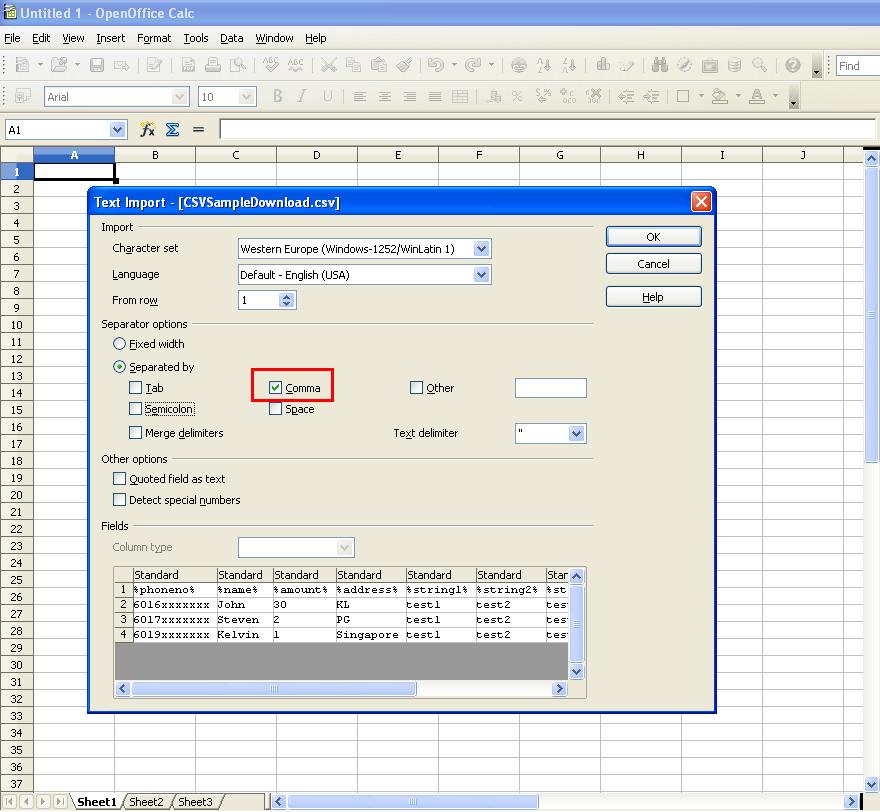
- 2
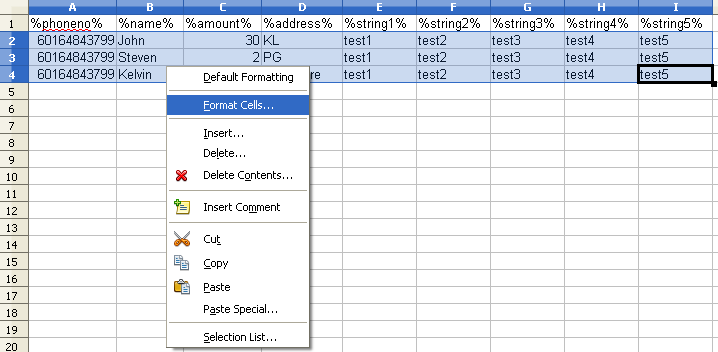
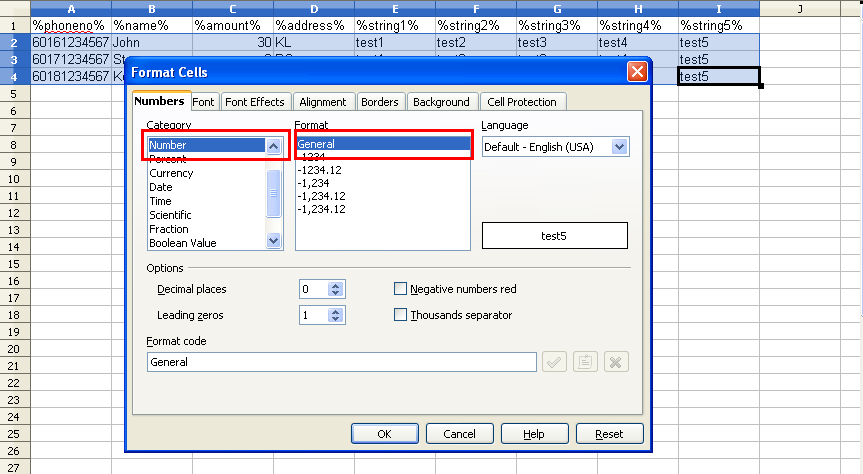
Format the cells as General
Highlight all the data, right-click and choose Format Cells, then set Category → Number and Format → General.
- 3
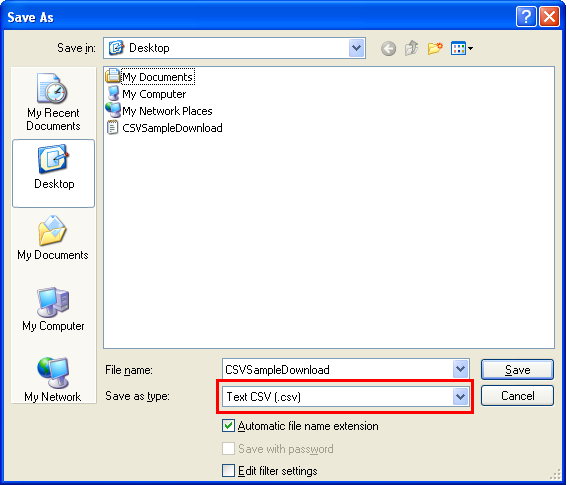
Save as Text CSV
Go to File → Save As and set Save as type → Text CSV (.csv).
- 4
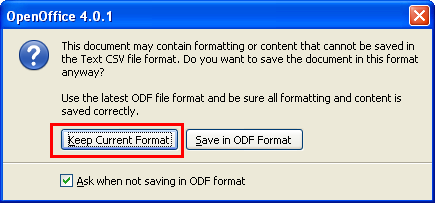
Keep the current format
When OpenOffice asks, click Keep Current Format to save as CSV rather than the OpenOffice format.
- 5
Set the delimiters and save
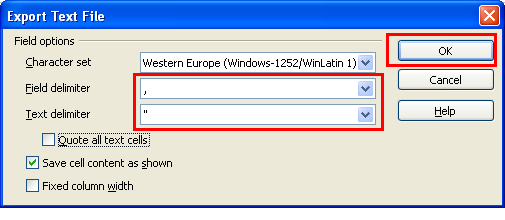
Choose a comma (,) as the Field delimiter and a quotation mark (") as the Text delimiter, then click OK to save the CSV file.
The two delimiters to set
In the export dialog, set the field delimiter to a comma and the text delimiter to a quotation mark so iSMS reads the columns correctly.
Your CSV is ready — head to CSV Compose to upload and send.